


06-10-2021, 02:01 AM
(آخر تعديل لهذه المشاركة: 06-10-2021, 08:15 AM بواسطة larbiparadox.)
يمكنك تخطي هذا بعدة طرق منها
1 _ تحميل نسخة windows 11 x64 من الموقع الرسمي على شكل ملف iso
2 _ تحميل نسخة windows 10 x64 على شكل ملف iso او ربما تكون لديك من قبل
3 _ استخراج من مجلد sources الملف install.wim من نسخة windows 11 x64
4 _ بواسطة برامج حفظ و التعديل و الحرق على ملفات iso نذكر منها UltraISO او Poweriso نفتح ملف iso لـ windows 10 x64 نحذف install.wim الموجود مجلد sources و نستبدله بملف install.wim الذي استخرجناه مسبقا ونحفظ النسخة
5_ نحرق النسخة على فلاشة او قرص و التثبت
طريقة ثانية: وسبب TPM 2.0
1 _ تحميل نسخة windows 11 x64 من الموقع الرسمي على شكل ملف iso
2 _ تحميل نسخة windows 10 x64 على شكل ملف iso او ربما تكون لديك من قبل
3 _ استخراج من مجلد sources الملف install.wim من نسخة windows 11 x64
4 _ بواسطة برامج حفظ و التعديل و الحرق على ملفات iso نذكر منها UltraISO او Poweriso نفتح ملف iso لـ windows 10 x64 نحذف install.wim الموجود مجلد sources و نستبدله بملف install.wim الذي استخرجناه مسبقا ونحفظ النسخة
5_ نحرق النسخة على فلاشة او قرص و التثبت
طريقة ثانية: وسبب TPM 2.0
كود :
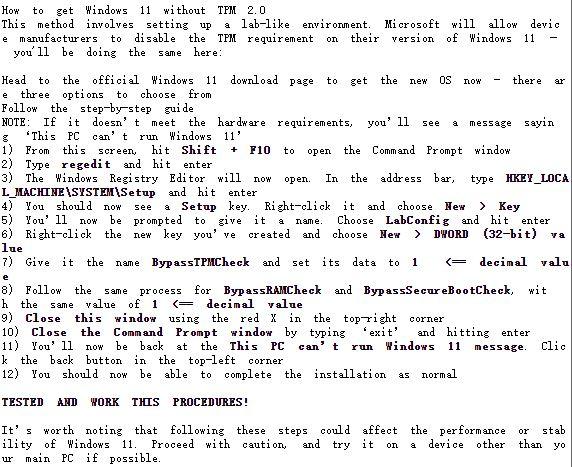
How to get Windows 11 without TPM 2.0
This method involves setting up a lab-like environment. Microsoft will allow device manufacturers to disable the TPM requirement on their version of Windows 11 – you'll be doing the same here:

Head to the official Windows 11 download page to get the new OS now - there are three options to choose from
Follow the step-by-step guide
NOTE: If it doesn’t meet the hardware requirements, you’ll see a message saying ‘This PC can’t run Windows 11’
1) From this screen, hit Shift + F10 to open the Command Prompt window
2) Type regedit and hit enter
3) The Windows Registry Editor will now open. In the address bar, type HKEY_LOCAL_MACHINE\SYSTEM\Setup and hit enter
4) You should now see a Setup key. Right-click it and choose New > Key
5) You’ll now be prompted to give it a name. Choose LabConfig and hit enter
6) Right-click the new key you’ve created and choose New > DWORD (32-bit) value
7) Give it the name BypassTPMCheck and set its data to 1  <== decimal value
8) Follow the same process for BypassRAMCheck and BypassSecureBootCheck, with the same value of 1 <== decimal value
9) Close this window using the red X in the top-right corner
10) Close the Command Prompt window by typing ‘exit’ and hitting enter
11) You’ll now be back at the This PC can’t run Windows 11 message. Click the back button in the top-left corner
12) You should now be able to complete the installation as normal

TESTED AND WORK THIS PROCEDURES!

It’s worth noting that following these steps could affect the performance or stability of Windows 11. Proceed with caution, and try it on a device other than your main PC if possible.
اللّهمّ فرّج أُموراً ضَاقت بها صُدورنا وعجزت بها حيلتنا وقلّ بها صَبرنا الّلهمّ أَسعِد قلوبنا بما أنتَ أعْلَمُ بِهِ مِنّا
